First-party tracking
Recognise returning visitors and, optionally, collect analytics through your own domain.
Written By David
Last updated About 8 hours ago
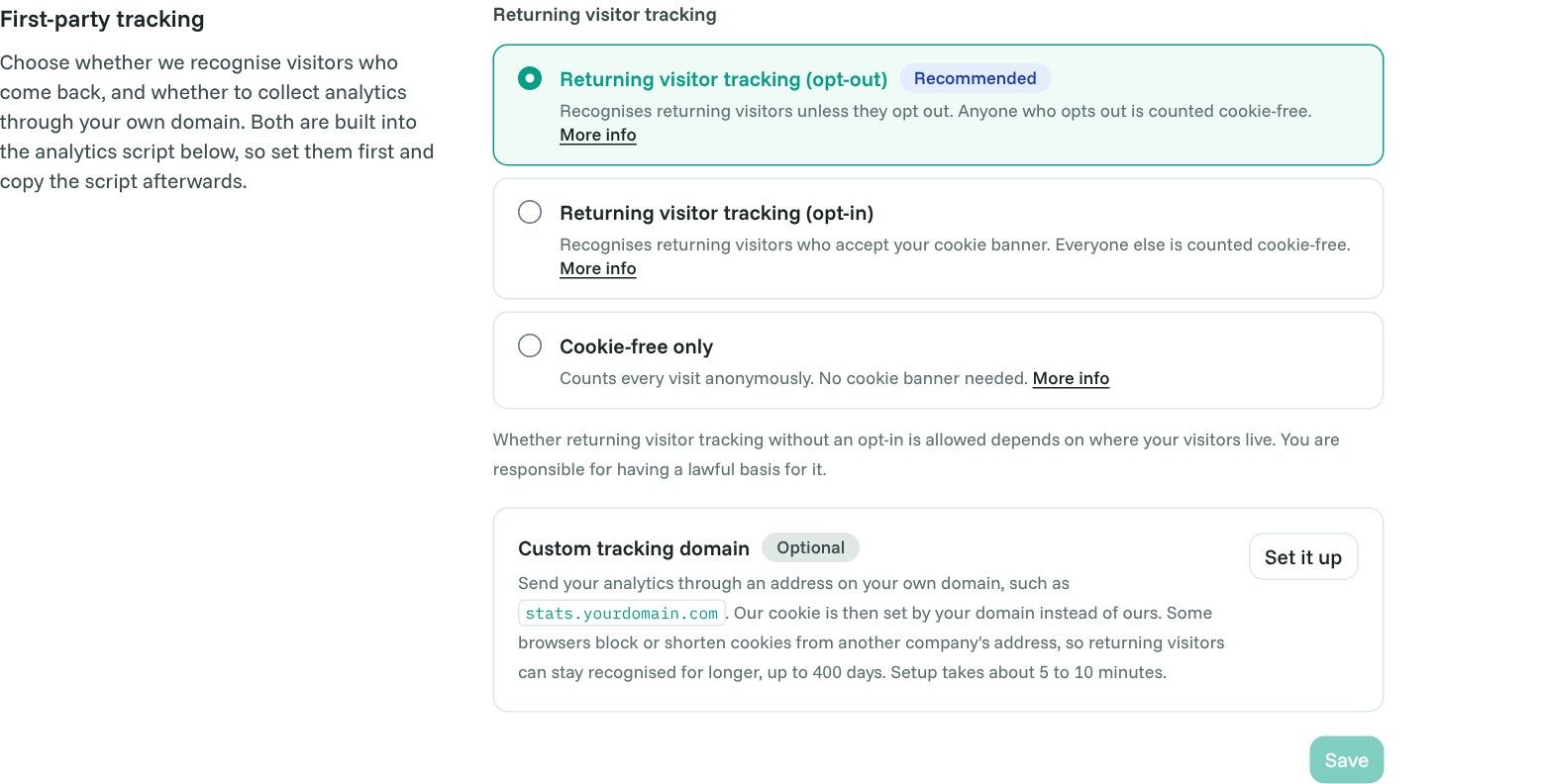
First-party tracking is included on Pro plans and above. It has two parts. You set both in Site Settings > Analytics, under Install Analytics Tracking script, or on the Install the Cromojo script step when you add a website:
- Pick your tracking method: choose whether visitors who come back on another day are recognised.
- Custom tracking domain (First-party tracking) is optional. It sends your analytics through an address on your own domain, such as
stats.yourdomain.com.
Both are built into your analytics script, so set them before you copy the script. New websites start on Returning visitor tracking (opt-out). Websites added earlier stay on Cookie-free only until you change it.
How it works
Our snippet runs in your visitor's browser. It sends each pageview and event to Cromojo. Without the snippet, nothing is tracked. First-party tracking changes two things:
- Where the script loads from and where events go. With a custom tracking domain, the snippet loads its script from your own domain and sends events there, instead of to ours.
- How returning visitors are recognised. The snippet gives the visitor a random ID, kept in their browser storage on your site. Our server also sets a cookie with the same ID. Without a custom tracking domain, that cookie comes from Cromojo's address, so browsers treat it as a third-party cookie. With a custom tracking domain, it comes from your own domain. That makes it first-party collection with server-set cookies.
Pick your tracking method
Returning visitor tracking (opt-out). Recommended. Every visitor is recognised when they come back, unless they opt out. Anyone who opts out is counted cookie-free. This gives you the most complete attribution of the three options. Whether it is allowed depends on where your visitors live, and you are responsible for having a lawful basis for it.
Returning visitor tracking (opt-in). Everyone starts cookie-free. Once a visitor clicks Accept on your cookie banner, Cromojo recognises them when they come back. Visitors who ignore or decline the banner stay cookie-free. You need a cookie banner for this option to do anything.
Cookie-free only. Every visit is counted anonymously and forgotten at the end of the day. Nothing is stored on the visitor's device, so you do not need a cookie banner for your analytics. The catch: someone who clicks your Google ad on Monday and buys on Friday looks like two strangers, and the sale is credited to Direct.
What "counted cookie-free" means. The visit is still counted, with its pages, source and country. It is just anonymous, so we cannot tell it is the same person on another day. With every option, browsers set to ask websites not to track them are not counted.
Click More info on any option to see how it works.
Connecting your cookie banner (opt-in)
Cromojo reads consent automatically from Google Consent Mode (analytics_storage) and from IAB TCF banners. With another banner, tell Cromojo when the visitor decides:
- When the visitor accepts:
window.CRMJ.setConsent('granted') - When the visitor declines:
window.CRMJ.setConsent('denied')
Custom tracking domain (First-party tracking)
Without a custom tracking domain, events go to Cromojo's address and our cookie is set from there. Some browsers block or shorten cookies like that. With a custom tracking domain, both move to your own domain, so returning visitors can stay recognised for longer, up to 400 days. How long a cookie lasts is always up to the browser. Safari, for example, may keep it for only 7 days. Setup takes about 5 to 10 minutes.
The custom tracking domain is optional. It is available while one of the two Returning visitor tracking options is picked.
What it does not do: it does not make tracking work without the snippet, it does not get past every ad blocker, and it does not change your consent obligations.
Step 1: Open the setup
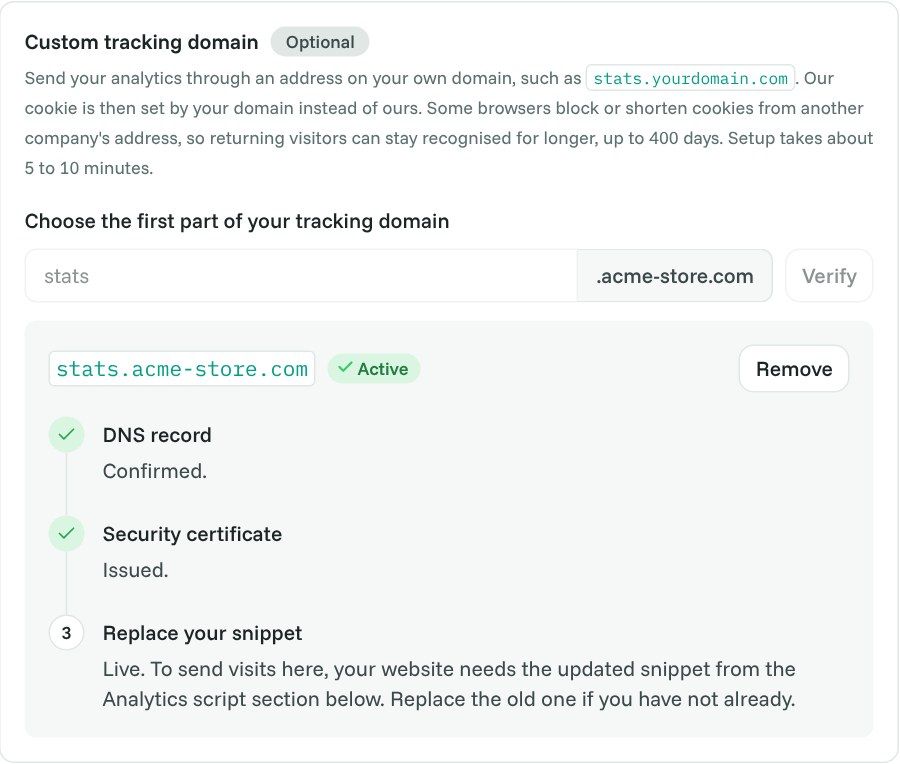
Under Custom tracking domain (First-party tracking), click Set it up. Cromojo fills in stats as the first part of the domain. You can change it.
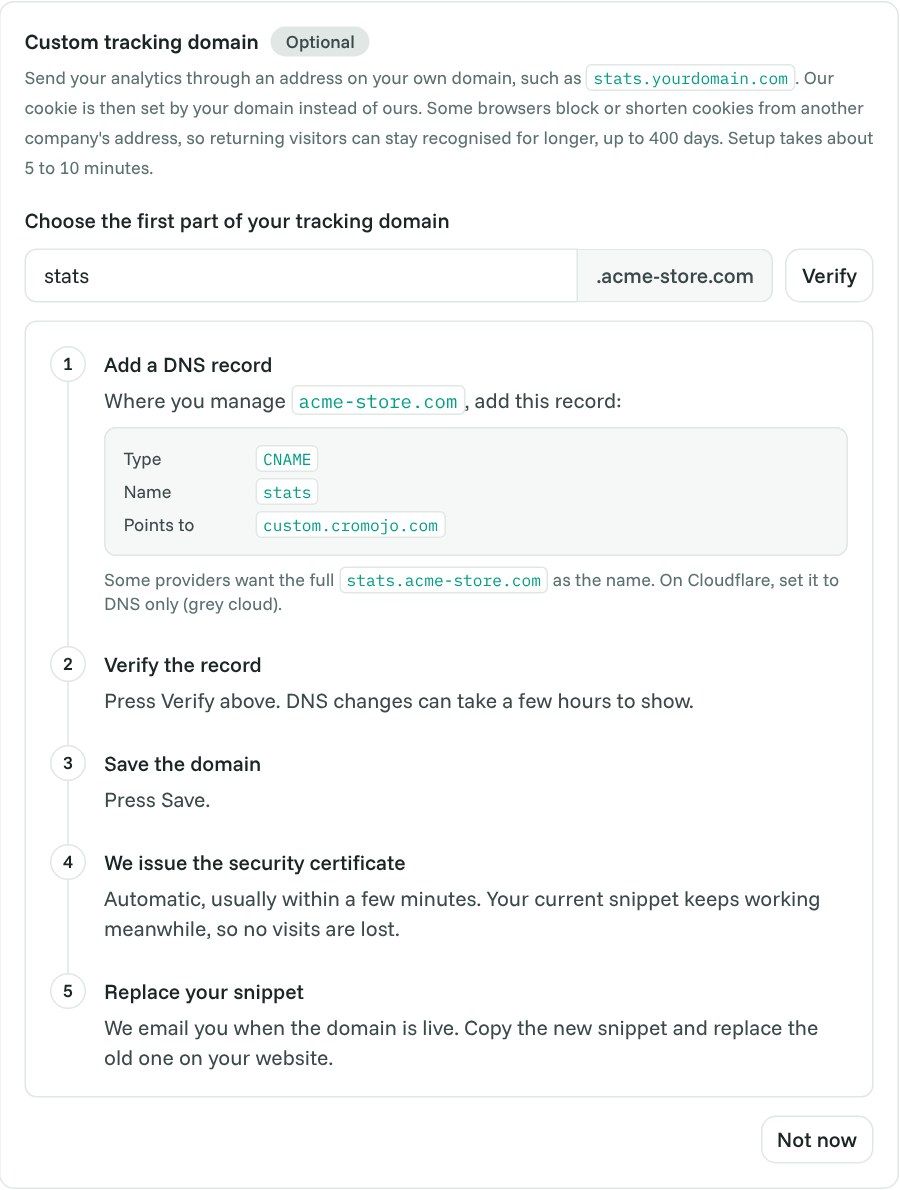
Step 2: Add the DNS record
Go to wherever you manage your domain (your registrar, your DNS provider or Cloudflare) and add the record Cromojo shows you:
Copy the exact values from Cromojo, not from this example.
- Some providers want the full name, for example
stats.yourdomain.com. - On Cloudflare, set the record to DNS only (grey cloud). A proxied record (orange cloud) stops the setup.
Step 3: Verify, then save
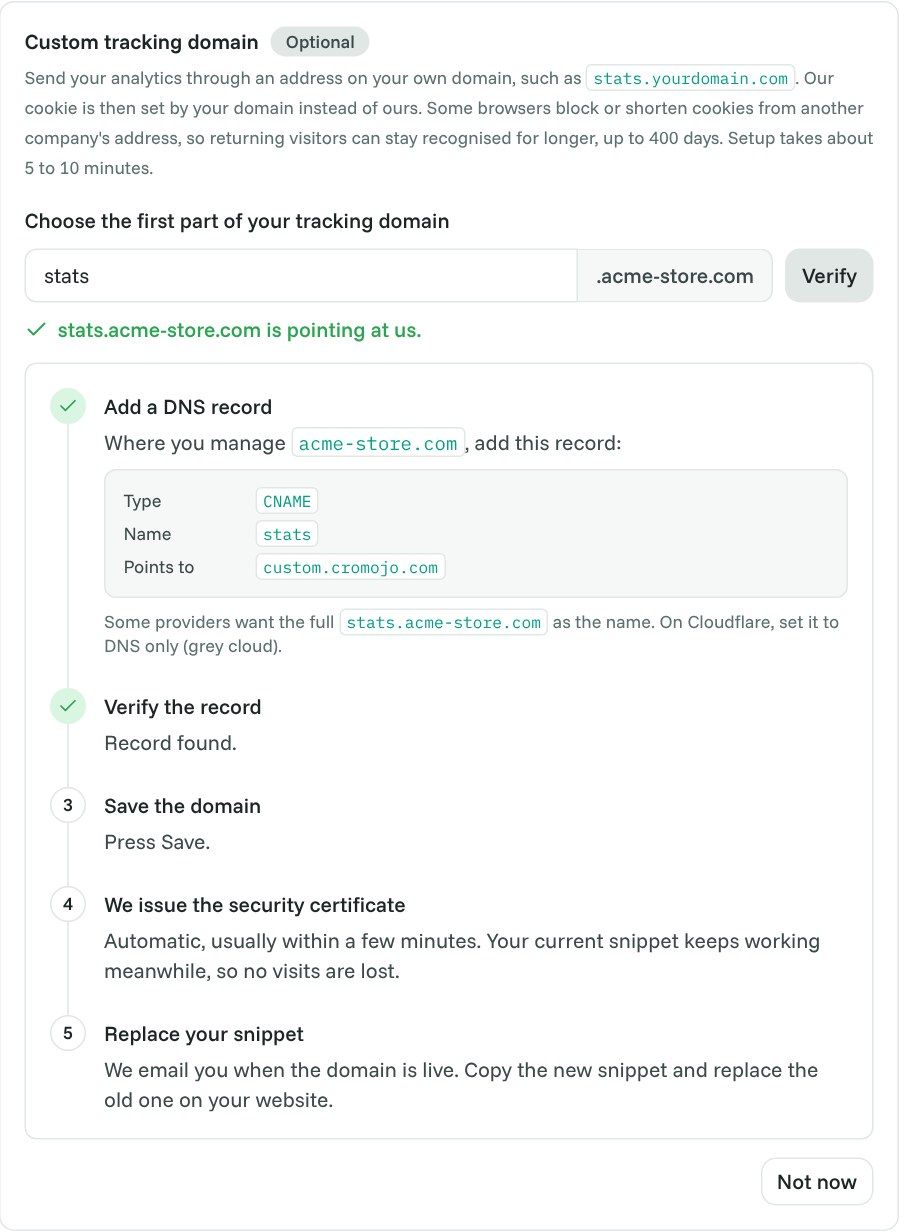
Click Verify. When Cromojo finds the record, you see a green line saying the domain is pointing at us. Then click Save.
DNS changes can take a few hours to show. If Verify cannot see the record yet, try again later. If the record points somewhere else, Cromojo tells you where it points.
Step 4: We issue the security certificate
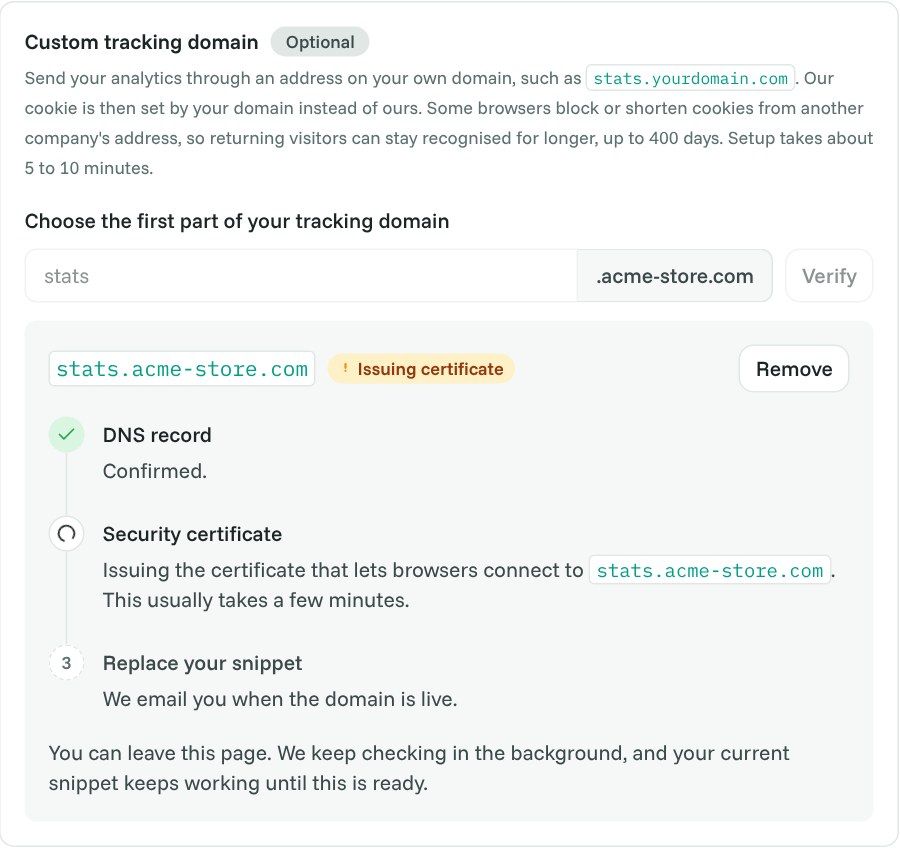
Nothing to do here. Cromojo confirms the DNS record and issues the security certificate for your domain automatically, usually within a few minutes. You can leave the page.
Your current snippet keeps working in the meantime, so no visits are lost.
Step 5: Replace your snippet
When the domain is live, the box shows Active and we email you a link to your new snippet.
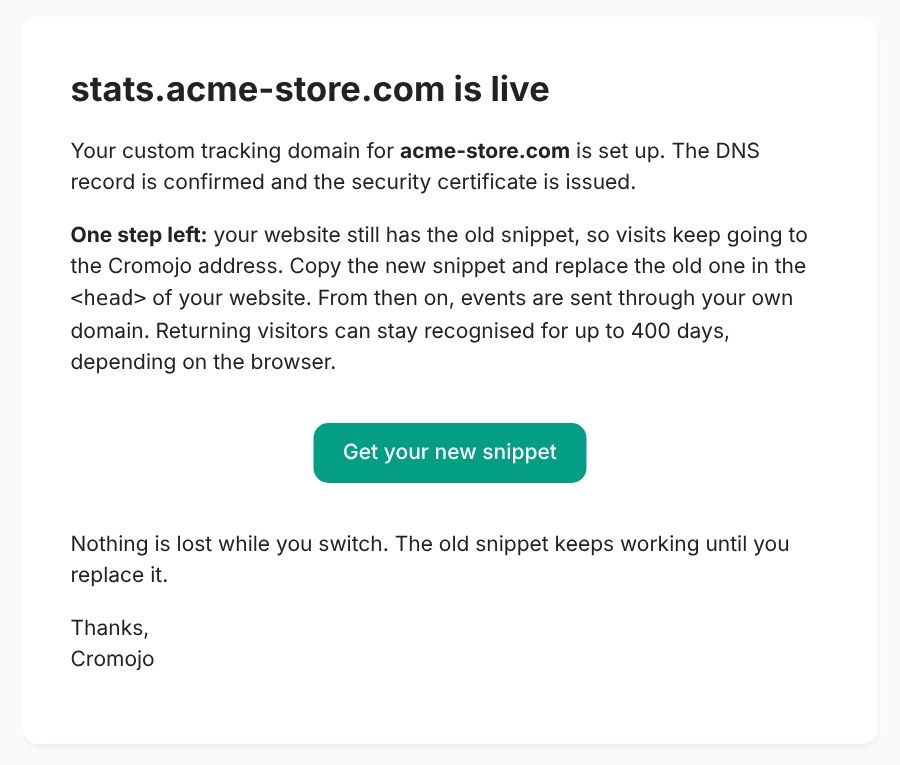
Copy the snippet from the Analytics script section and replace the old one in the <head> of your website. The new snippet contains your domain twice: in src, where the script loads from, and in data-proxy, where events are sent.
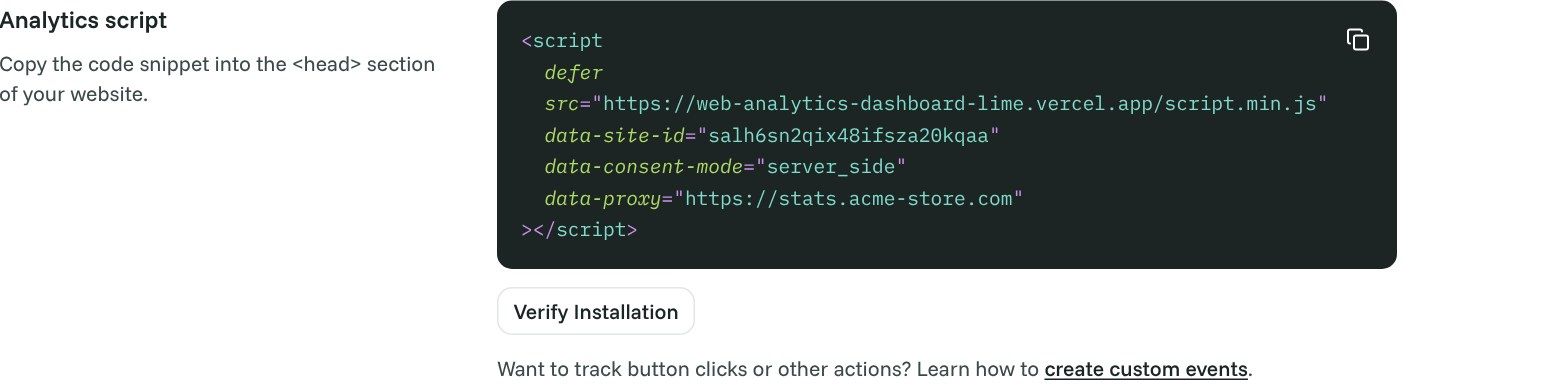
Until you replace it, events keep going to the Cromojo address. Nothing is lost, but some browsers may forget returning visitors sooner.
Changing or removing the domain
To change the domain, click Remove on the custom tracking domain box, then set up the new one. Choosing Cookie-free only also removes it. Both ask you to confirm first.
If the domain was live, tracking on it stops straight away. Copy the new snippet and replace the old one on your website.
After you change these settings
Cromojo shows "Saved. Your analytics script has changed." Copy the new snippet from the Analytics script section and replace the old one on your website. Until you do, the new setting has no effect.
Troubleshooting
Stuck on "Waiting for DNS". Check that the record name and the Points to value match what Cromojo shows. On Cloudflare, make sure the record is set to DNS only.
Stuck on "Issuing certificate" for more than an hour. Check whether your domain has CAA records. If it does, they must allow letsencrypt.org, pki.goog and ssl.com. If that is fine, contact support@cromojo.com.
"Needs attention". The reason is shown under the badge. Check that the DNS record still exists and still matches. We keep checking automatically.
Related articles
Was this helpful?
Still need help? Ask the team