Creating & Tracking Custom Events
Capture the actions that matter
Written By David
Last updated 11 days ago
Events show you what visitors do on your site, not just which pages they view. A signup, a click on "Book a demo", an item added to the cart: each one is an event. Once Cromojo records an event, you can count it, see who did it, and turn it into a goal or a funnel step.
You need the Cromojo tracking script installed on your site. If you can see visitors in your Cromojo dashboard, it's installed.
Two kinds of events
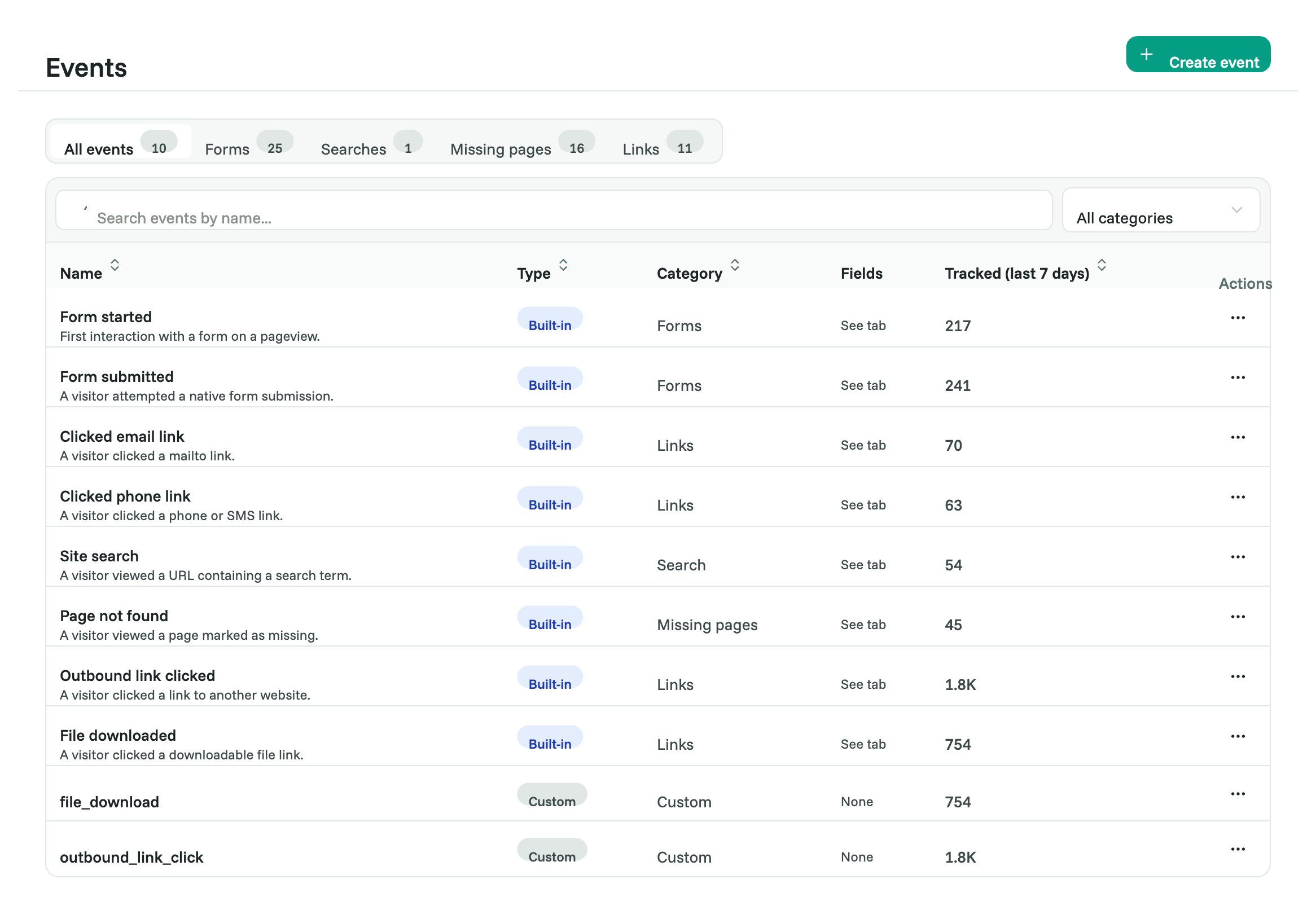
Built-in events are captured for you, with no setup. Cromojo records them as soon as the tracking script is on your site:
Form started: a visitor clicks into a form field for the first time.
Form submitted: a visitor submits a form.
Clicked email link: a visitor clicks a mailto: link.
Clicked phone link: a visitor clicks a tel: or sms: link.
Site search: a visitor views a search results page on your site.
Page not found: a visitor lands on a missing (404) page.
Outbound link clicked: a visitor clicks a link to another website.
File downloaded: a visitor clicks a link to a file, such as a PDF.
To label your forms, set up site search or mark your 404 page, see Automatic event tracking.
Custom events are the ones you define yourself, for anything specific to your business: a plan picked, a video played, a step completed in your app. For a store you'll often see view_product, add_to_cart, begin_checkout and purchase.
You'll find both under Analytics > Events, with tabs for forms, searches, missing pages and links.
Create a custom event
Go to Analytics > Events and click Create event.
Enter an event name. Use lowercase letters, numbers and underscores, for example start_trial or add_to_cart.
Optional: under Additional info, add the extra details you want to send with the event, such as plan or price. Pick a type for each one: text, whole number, decimal or true/false.
Click Save.
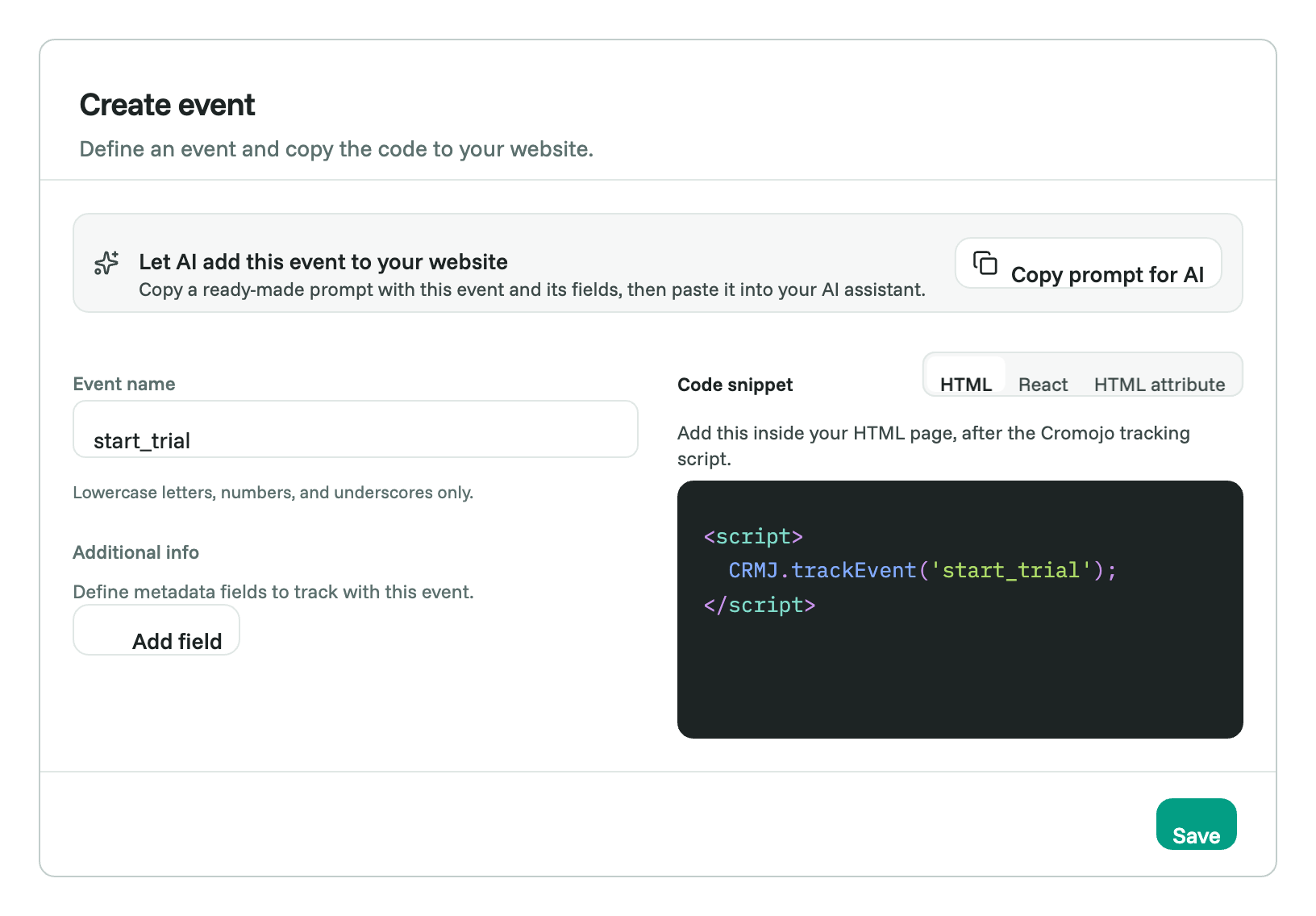
Saving the event defines it in Cromojo. Nothing is recorded until your website sends it, which is the next step.
Add the event to your website
Pick whichever way suits you. They all record the same event.
Option 1: Let an AI assistant do it
If you use ChatGPT, Claude, Cursor or another AI tool to edit your site, this is the quickest way. (Make sure your MCP is connected)
In the Create event dialog, fill in the event name and its details.
Click Copy prompt for AI.
Paste the prompt into your AI assistant, and tell it where the event should happen. For example: "Fire it when the checkout form is submitted successfully."
The prompt includes your event name, its details and Cromojo's rules, so the assistant has everything it needs. Always review the changes it makes before publishing them.
Option 2: HTML attributes, no code needed
Best for clicks on a button or a link, including in page builders like Webflow, Framer or WordPress. Add these attributes to the element:
<button data-analytics-event="start_trial"
        data-analytics-meta-plan="pro"
        data-analytics-meta-seats="5">
  Start free trial
</button>
data-analytics-event is the event name.
Each data-analytics-meta-... attribute adds one detail. The text after data-analytics-meta- is the detail's name.
Numbers and true/false are recorded as numbers and true/false automatically.
Cromojo records the event every time the element is clicked. It also records the button's text, so you can tell buttons apart. The HTML attribute tab in the Create event dialog writes this code for you.
Option 3: JavaScript
Use this for anything that isn't a simple click: a form that was submitted, a purchase, a step finished in your app.
if (window.CRMJ) {
  window.CRMJ.trackEvent('add_to_cart', {
    product: 'Blue mug',
    value: 18,
    currency: 'EUR',
  });
}
The if (window.CRMJ) check makes sure the Cromojo script has loaded first, so your page never shows an error.
Option 4: React and other frameworks
Call the same function from any event handler:
function StartTrialButton() {
  const handleClick = () => {
    window.CRMJ?.trackEvent('start_trial', { plan: 'pro' });
  };

  return <button onClick={handleClick}>Start free trial</button>;
}
The React tab in the Create event dialog has a version with the TypeScript types included.
On Shopify, purchases on the thank-you page need a small pixel. See "Install on Shopify".
Send extra details with an event
Details tell you more about each event: which plan, which product, what price.
Names: lowercase letters, numbers and underscores, up to 100 characters. For example plan, product_id, video_title.
Values: up to 500 characters each.
How many: up to 50 details per event with JavaScript, and up to 20 with HTML attributes.
Send numbers as numbers. Write 49.99, not '49.99'. Cromojo can then show a total and an average for that detail. If your site can only send text, set the detail's type to whole number or decimal in Cromojo, and it will still add them up.
Privacy: what Cromojo won't store
Cromojo doesn't store personal data from events. It replaces it with [redacted]:
Any detail whose name contains a personal word, such as name, email, phone, address, zip, customer, order, user_id or password. So product_name and customer_type are redacted too. Use names like product or plan_type instead.
Any value that looks like an email address or a long number, like a card or phone number, whatever the detail is called.
Don't send personal information in events. It's not needed for analytics, and Cromojo will remove it anyway.
Check that it works
Do the action on your website yourself. For example, click the button.
Open Analytics > Events. Your event appears within a minute or two, and its count goes up. The count covers the last 7 days.
Click the event's name to see its details: every value it received, how often, and the share of each. You can search the values too.
You can also open a visitor in Analytics > Visitors. Their journey shows each event at the moment it happened, and hovering over an event shows its details.
Put events to work
Goals: from the ⋯ menu next to an event, choose Use as goal. You can also add goals in Settings > Analytics > Conversion Metrics (see Setting Up Conversions).
Funnels: in Analytics > Funnels, add the event as a step (see Building Conversion Funnels).
Limits
Custom events per site: Free 1, Starter 5, Pro and above unlimited. Built-in events don't use any of these slots.
Best practices
Track success, not attempts. Record the event when the signup is accepted, not when the button is pressed. Your numbers will match real results.
Keep names consistent. start_trial and trial_started are two different events in Cromojo.
Track the few actions that map to business value, not everything.
Don't duplicate built-in events. Forms, email and phone links, searches and downloads are already captured.
Hide a button from automatic tracking by adding data-analytics-ignore to it, or to a section around it.
For purchases, connect Stripe or Shopify as well (see Setting Up Conversions). Payments recorded by your payment provider aren't blocked by ad blockers.
Troubleshooting
My event doesn't appear.
Check that the tracking script is installed on the page where the event happens.
Your own browser may block tracking. Cromojo respects the "Do Not Track" and "Global Privacy Control" settings, and some ad blockers stop analytics too. Try a different browser or a private window.
Check the spelling. The name in your code must match the name in Cromojo exactly.
If you use JavaScript, check the code runs. Open your browser's console and type window.CRMJ. If it says undefined, the Cromojo script hasn't loaded on that page.
A detail shows [redacted]. Its name contains a personal word, or its value looks like an email or a long number. Rename the detail (see Privacy above).
A number detail has no total or average. The site sent it as text. Send it as a number, or set the detail's type to whole number or decimal in the event's settings.
The count looks low. The Events page counts the last 7 days. Older events are still in your analytics and goals.
FAQ
Do I have to create the event in Cromojo first? No. Cromojo records events your site sends even before you define them. Defining an event adds it to your Events list, the goal picker and the funnel builder.
Can I edit an event after creating it? Yes. Use Edit event in the ⋯ menu to change its details. The name can't change, because your site sends it. To rename, create a new event and update your code.
Does deleting an event delete its data? No. Deleting removes the definition only. Events already recorded stay in your analytics.
Need help wiring events into Shopify or GTM? Email support@cromojo.com.
Related articles
Was this helpful?
Still need help? Ask the team