Running & Configuring Performance Scans 🆕
Set your scan scope and run on demand
Written By David
Last updated 10 days ago
By default, Cromojo runs a Page Performance scan automatically once a week, you don't have to lift a finger. But you can also run a scan whenever you want, and control exactly which pages get scanned.
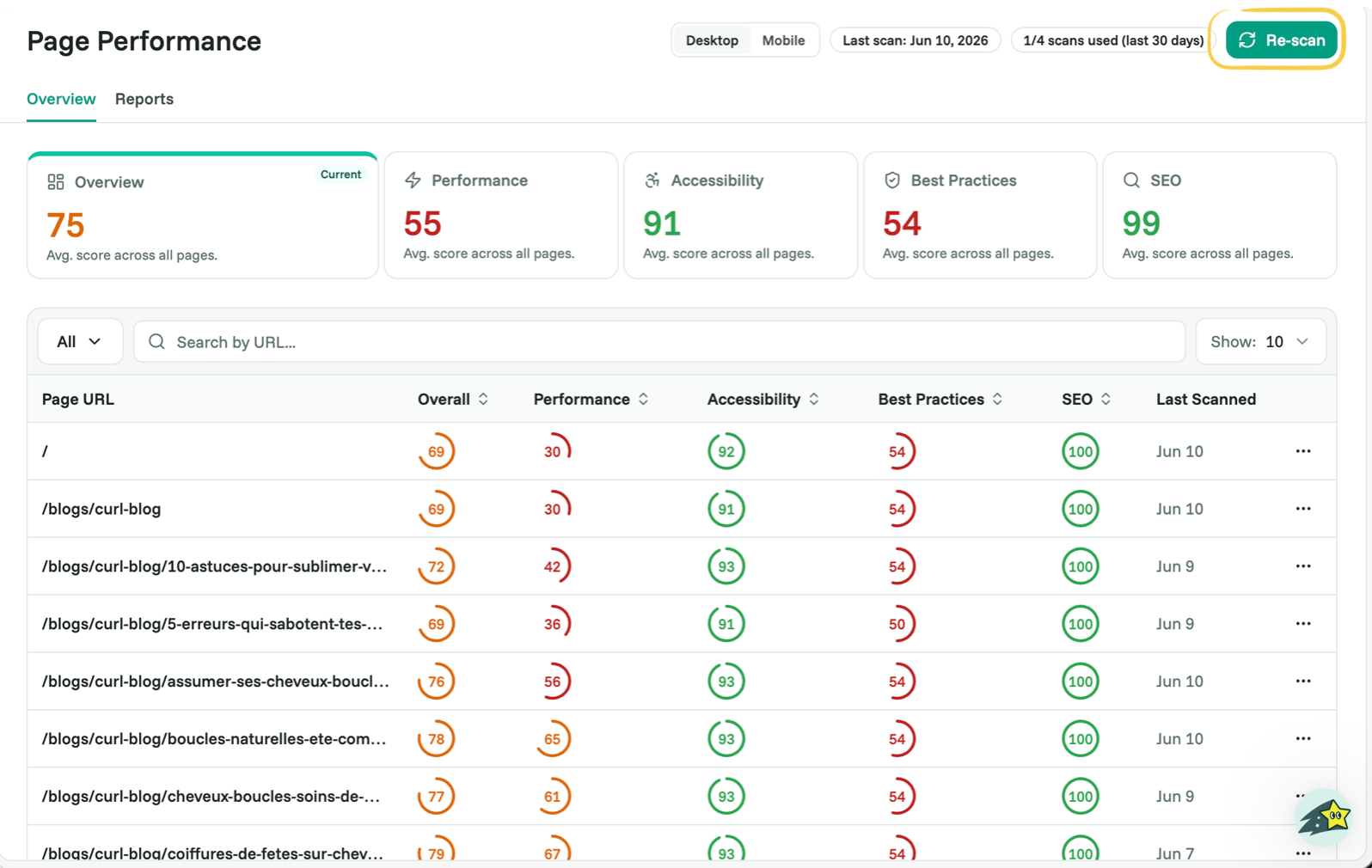
Run a scan on demand
On the Page Performance page, click Re-scan to run a fresh scan right away. There’s a monthly limit (shown as, for example, “0/4 scans used in the last 30 days”), so save on-demand scans for when you’ve just made changes and want to see the impact.
Choose which pages get scanned
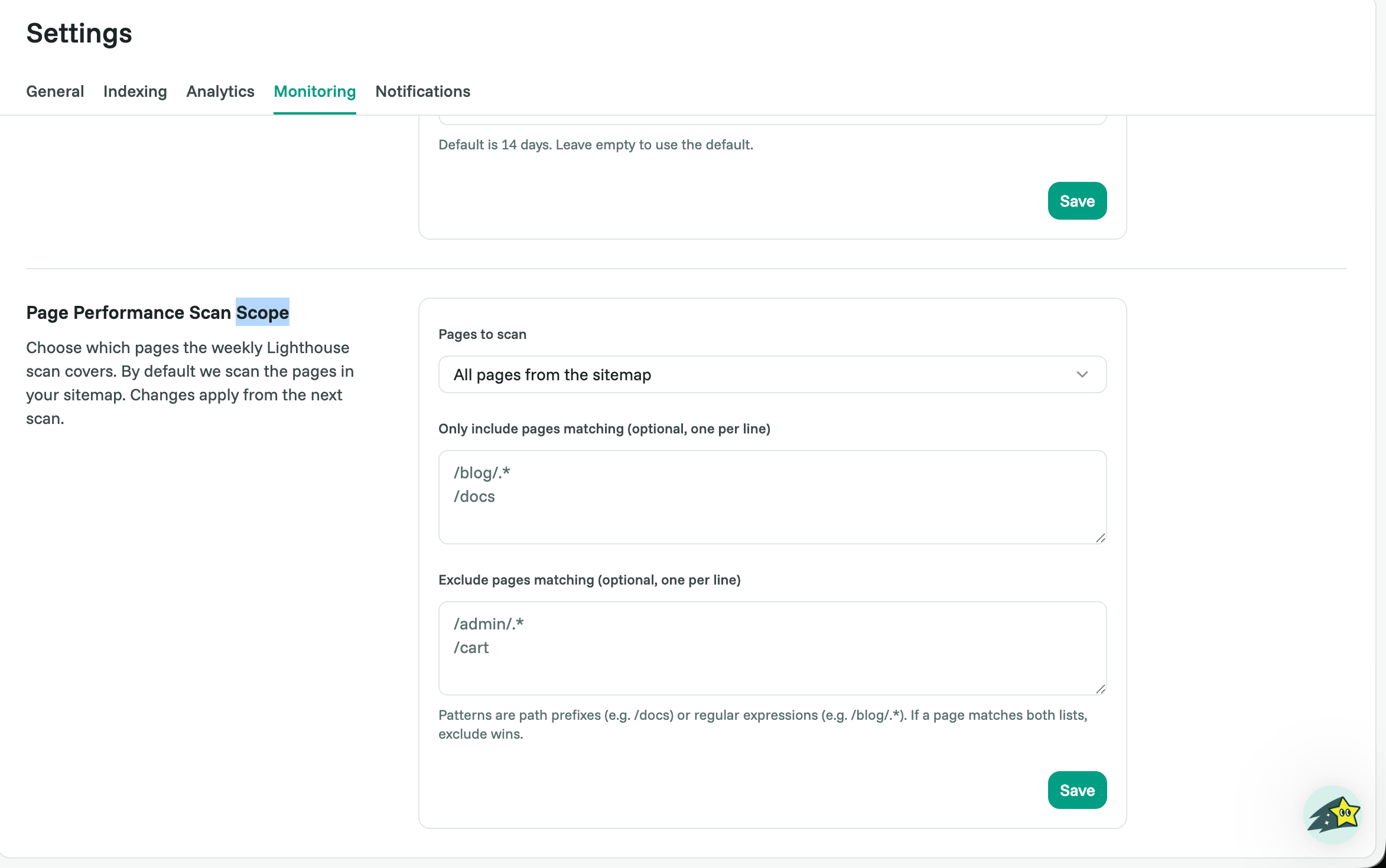
Go to Settings → Monitoring → Page Performance Scan Scope. You have two options:
All pages from your sitemap (the default), Cromojo scans everything in your sitemap.
Only a custom list of URLs, you paste the exact pages you want scanned.
Fine-tune with include and exclude
You can narrow the scan further with patterns, one per line:
Include patterns, only scan pages that match (for example, /blog).
Exclude patterns, skip pages that match (for example, /account).
Patterns can be simple path prefixes (like /docs) or regular expressions (like /blog/.*). If a page matches both lists, exclude wins. Changes take effect from the next scan.
A tip for large sites
Don't scan everything. Narrow the scope to your most important templates, home, key product or collection pages, top blog posts. Each scan stays focused, and you stay within your monthly limit.