Bing Indexing
Reach Bing (and Copilot) as well as Google
Written By David
Last updated 26 days ago
Bing indexing is included from Starter.
Google isn’t the only search engine, Bing powers Microsoft search and Copilot, and it’s quick to set up. Connecting Bing lets Cromojo submit your pages there too.
Before you start
You’ll need a free Bing Webmaster Tools account (bing.com/webmasters) and access to your site’s settings to verify ownership.
Step 1: Connect to Bing from Cromojo
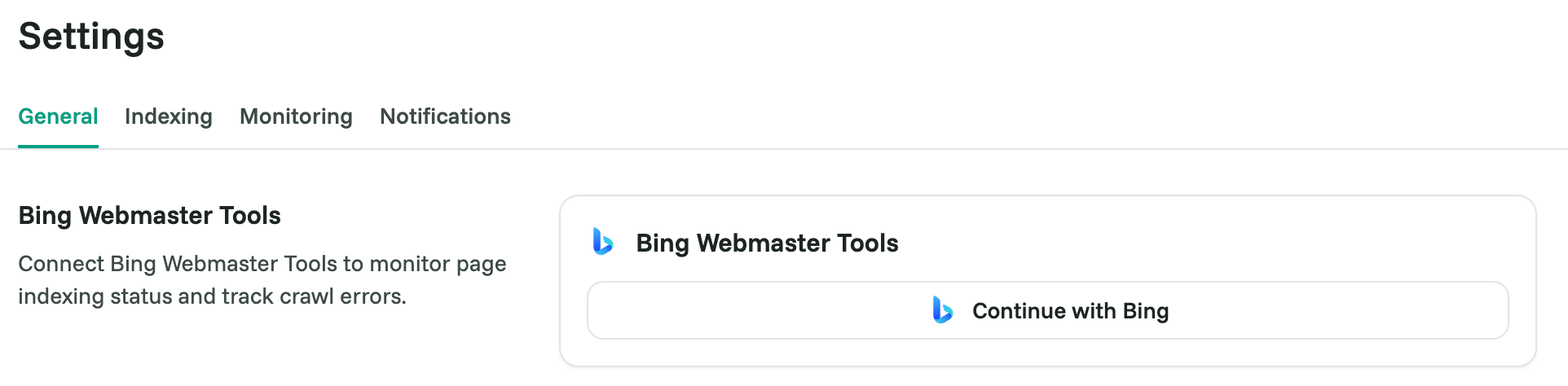
In Cromojo, open your site and go to Settings → Bing Webmaster Tools
Click "Continue with Bing"
You'll be redirected to Bing Webmaster Tools to sign in.
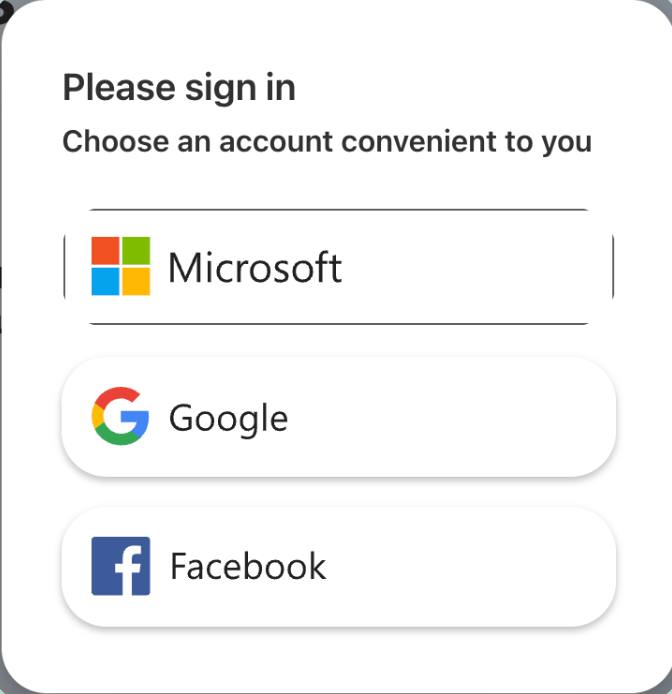
Step 2: Sign in to Bing Webmaster Tools
Sign in with the Microsoft account associated with your site. If you don't have one yet, create a free account at bing.com/webmasters.
Alternative: Import your site from Google Search Console
If your site is already verified on Google Search Console, this is the fastest method, no DNS verification needed.
Go to bing.com/webmasters and sign in
Click on the websites dropdown (top left) and select "+ Add a site"
On the "Select one of the methods" screen, click "Import" under the Google Search Console option
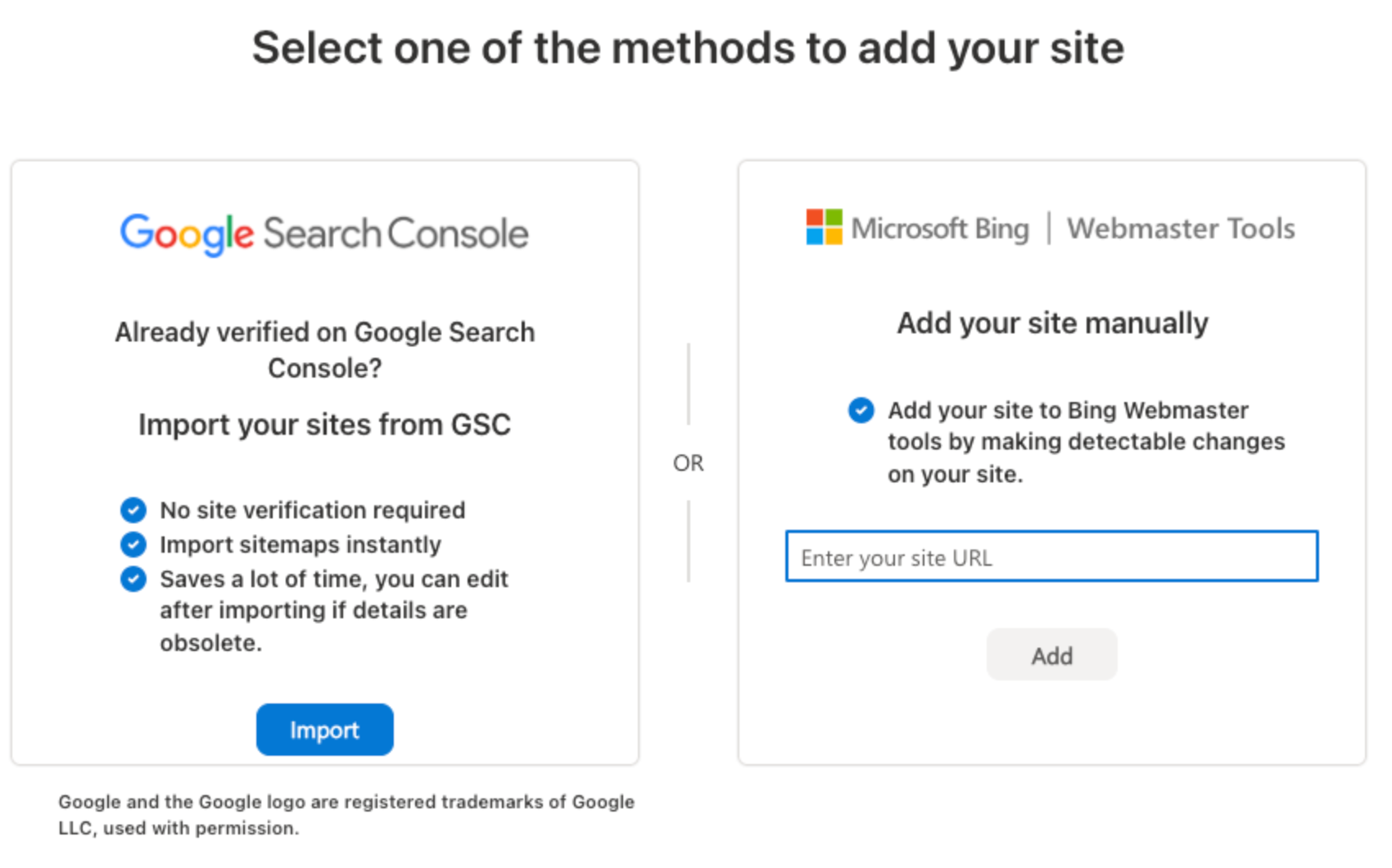
Sign in with your Google account and select the site(s) to import
Bing will automatically import your site and your sitemaps, no verification step required
💡 Why use this method? It saves significant time: your site is verified instantly and your sitemaps are imported automatically. Recommended if you're already using Google Search Console.
Once imported, continue with Step 4 to complete verification in Cromojo.
Step 3: Add & verify your site in Bing
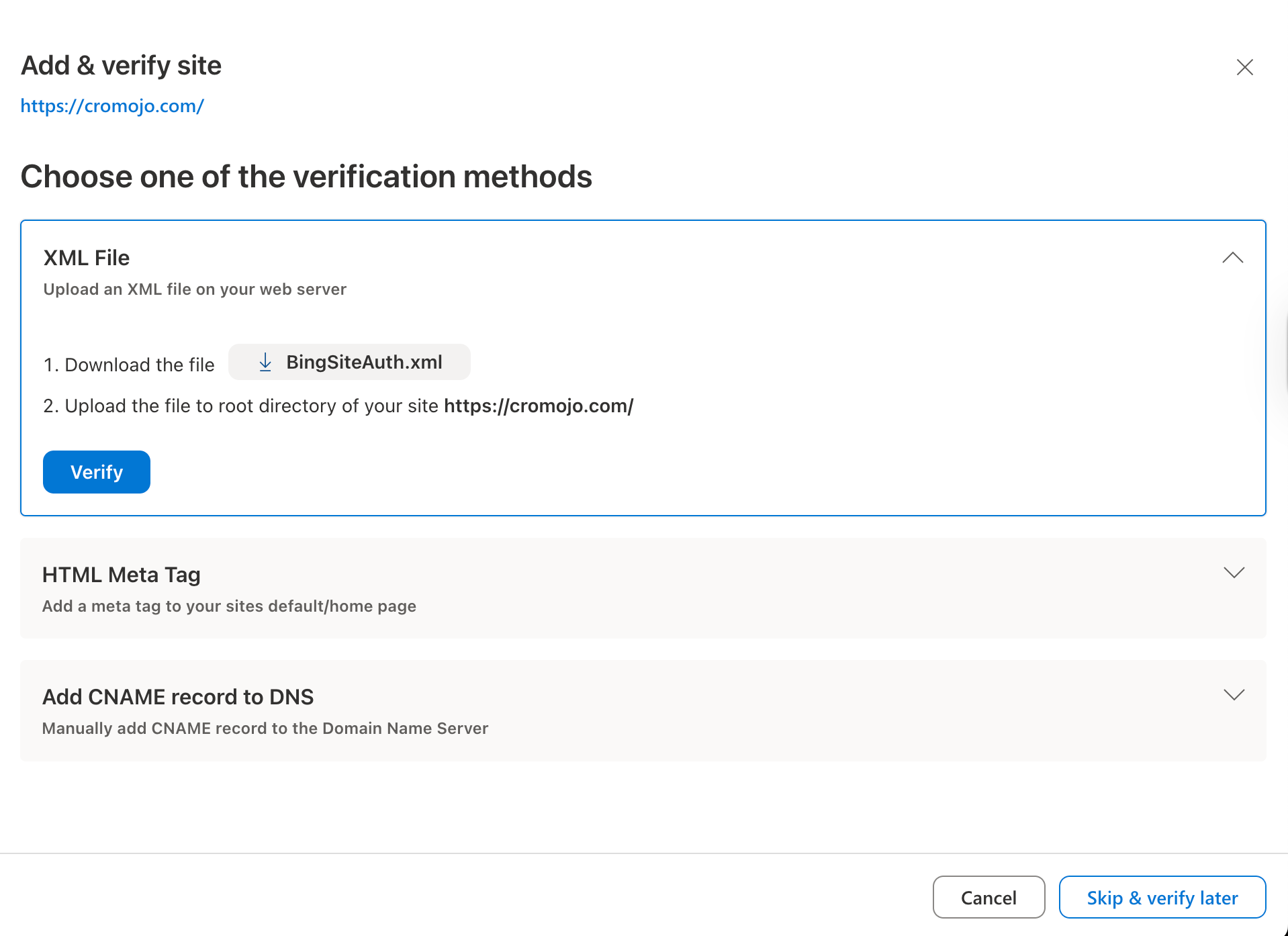
Bing requires you to prove you own the site before granting API access. You'll be prompted to choose a verification method:
Option A: XML File (recommended if you have server access)
Download the XML file provided by Bing
Upload it to the root of your web server (e.g.
https://yoursite.com/BingSiteAuth.xml)Click Verify
Option B: HTML Meta Tag
Copy the meta tag provided by Bing
Paste it inside the
<head>of your homepageClick Verify
Option C: CNAME Record (recommended for Squarespace, Webflow, or DNS-managed sites)
Copy the CNAME name and value provided by Bing (e.g. name:
f536e8e7aaad46b6ca9d15f2cf45f73b, value:verify.bing.com)Go to your DNS provider (Squarespace, OVH, GoDaddy, etc.) and add a new CNAME record with those exact values
Wait 30 minutes to 2 hours for DNS propagation before clicking Verify
⚠️ Getting an "Unexpected error occurred"? This almost always means DNS hasn't propagated yet. Wait at least 30–60 minutes after adding the CNAME, then retry. You can check propagation status at dnschecker.org by searching for your CNAME hostname.
Step 4: Complete verification in Cromojo
Once Bing confirms your site is verified, go back to Cromojo
In Settings → Bing Webmaster Tools, click Verify
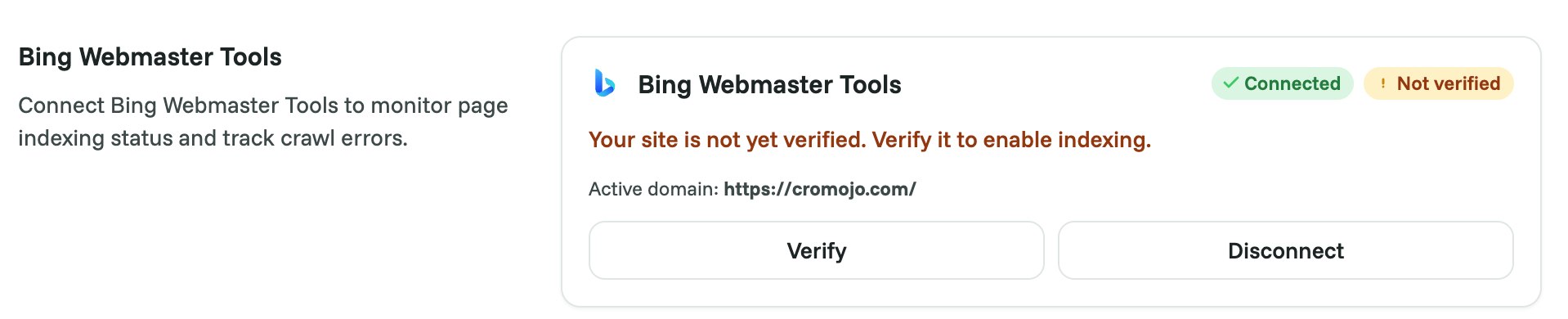
Cromojo will retrieve your Bing API key and activate the integration
If your Bing account has more than one site for your domain (for example with and without www), Cromojo asks you to choose which one is this website. Only sites Bing has verified can be picked.
✅ You're done, Cromojo can now submit URLs to Bing automatically.
Good to know
Importing from Google Search Console is the easiest verification method, your site and sitemaps come over automatically.
Once connected, pages on auto-indexing are submitted to Bing as well as Google.
Related articles
Was this helpful?
Still need help? Ask the team