Install on Wix
Add Cromojo with custom code
Written By David
Last updated 14 days ago
Wix lets you add custom code to the head of all your pages through its Custom Code panel.
Add the script
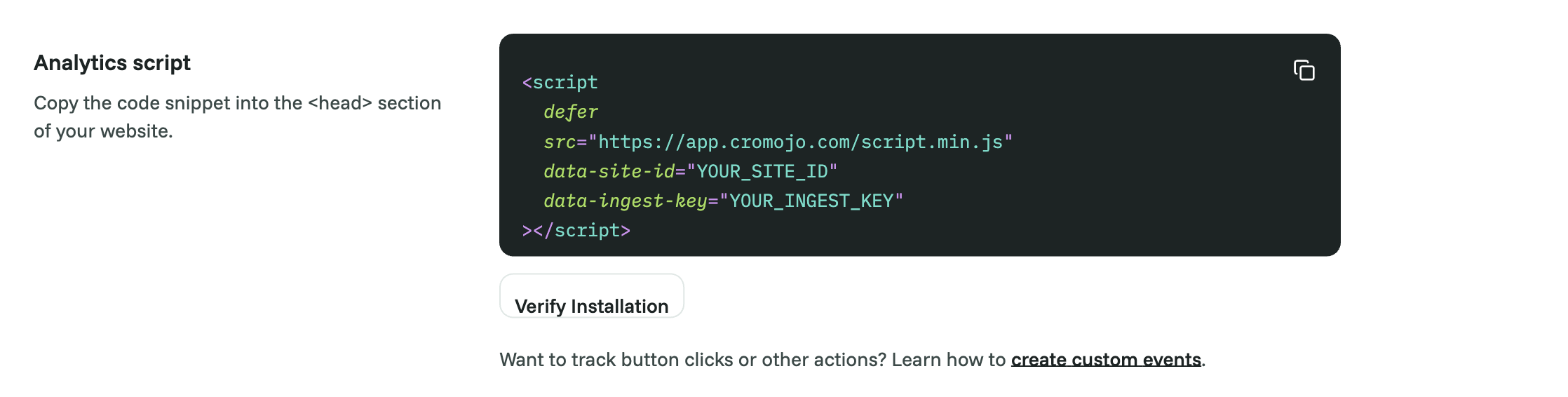
In Cromojo, go to Settings > Analytics and copy the whole snippet.
In your Wix dashboard, go to Settings > Custom Code (under Advanced).
Click + Add Custom Code.
Paste your Cromojo script into the code box and give it a name (for example "Cromojo").
Under Add Code to Pages, choose All pages, and set Place Code in to Head.
Click Apply.
Verify
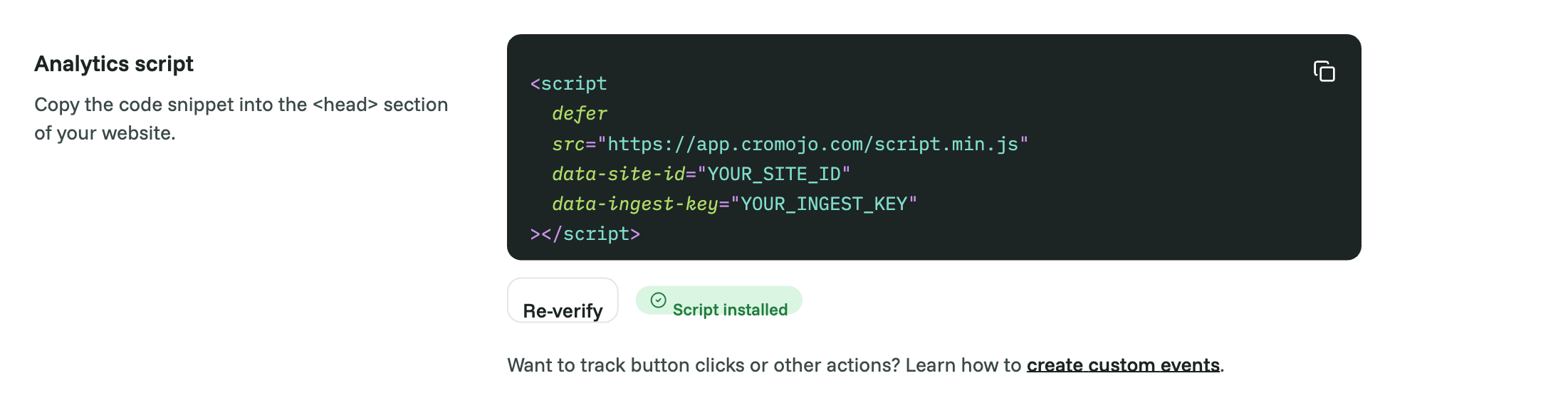
Back in Cromojo, open Settings > Analytics and click Verify Installation, or visit your own site and watch for your visit to appear on the dashboard within a minute or two.
Good to know
Custom Code requires a paid Wix plan with a connected domain. On a free Wix site this option isn't available.
If you later change your First-party tracking settings in Cromojo, the snippet changes. Edit the Cromojo custom code and paste the new one.
Was this helpful?
Still need help? Ask the team