Website Event Scanner: suggest events, funnels and goals from your site
Scan up to 30 pages of your site and get a ready-to-install set of events, a funnel and goals. Accept the suggestions, edit them, or skip the ones you don't need.
Written By David
Last updated 3 days ago
Not sure what to track on your site? The Website Event Scanner reads your pages, understands what you're selling or trying to do, and suggests a ready-to-install set of events, a funnel and goals. You then accept the ones that fit, edit them, or skip the rest.
Scanning is non-destructive: nothing is tracked or saved until you accept a suggestion.
Where to find it
Open your website and go to Analytics > Events, then click Scan my website. A scan takes about a minute and reads up to 30 pages (the scanner stops at that cap; large sites are sampled from their sitemap and homepage links).
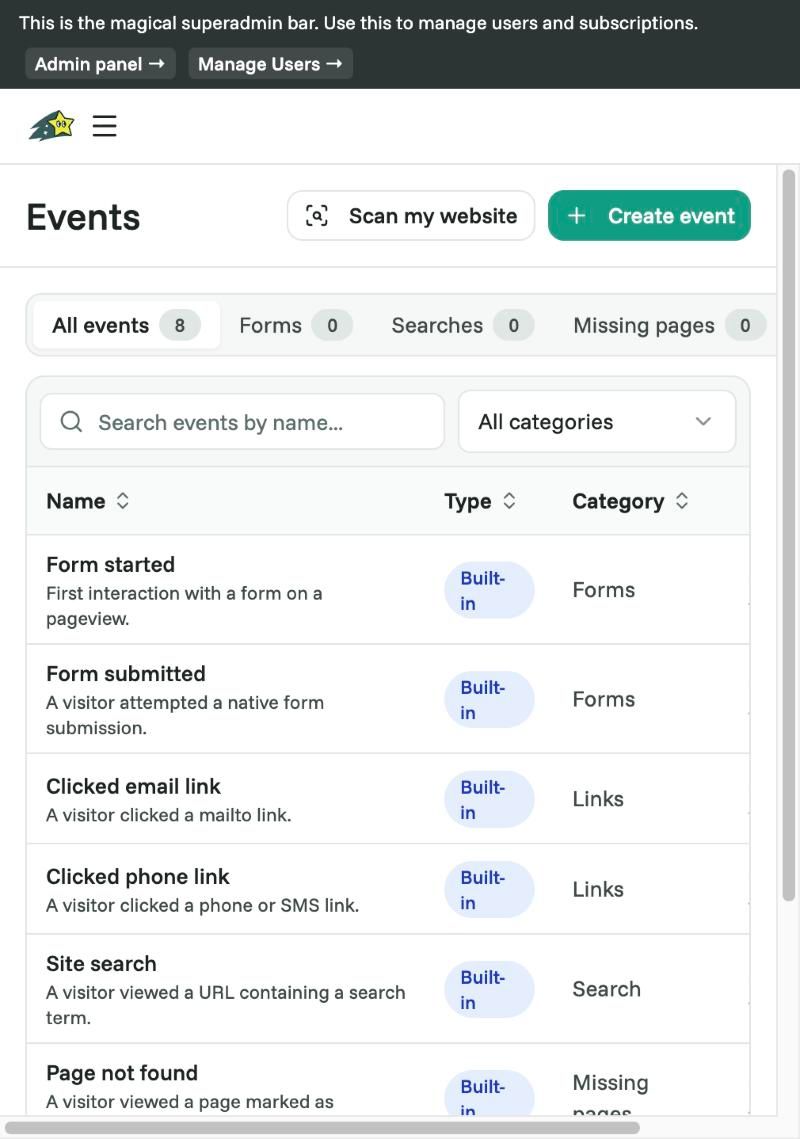
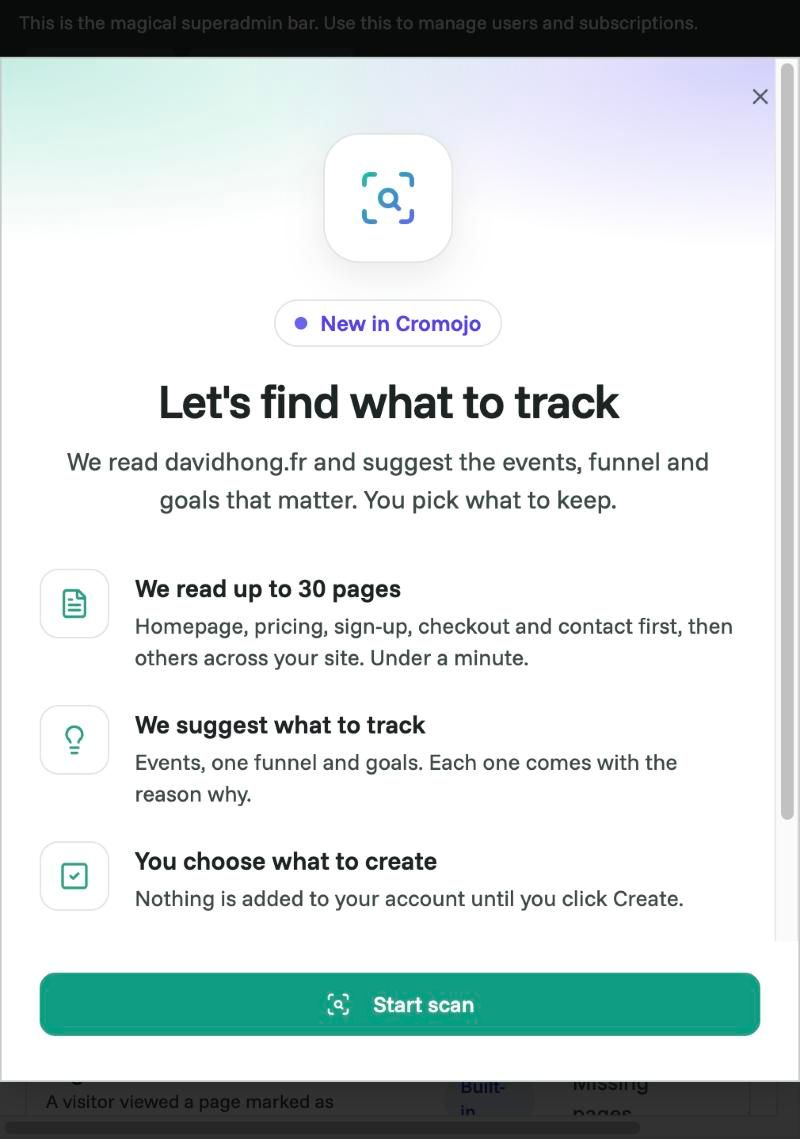
Clicking the button opens an intro that explains what the scanner will do before you start:
What a scan gives you
Each scan returns three groups of suggestions, side by side:
Events — the actions worth measuring on your site: a signup form, an add-to-cart, a "book a demo" click, a newsletter sign-up, a file download, an outbound link to a partner, etc. Most are built from CSS selectors the scanner found on your pages. A few need code (see "Code events" below).
A funnel — the sequence of pages a visitor typically goes through on the way to a conversion, assembled from pages that matter (home → pricing → checkout → thank you, for example).
Goals — the events you actually care about counting as conversions, mapped to the events above.
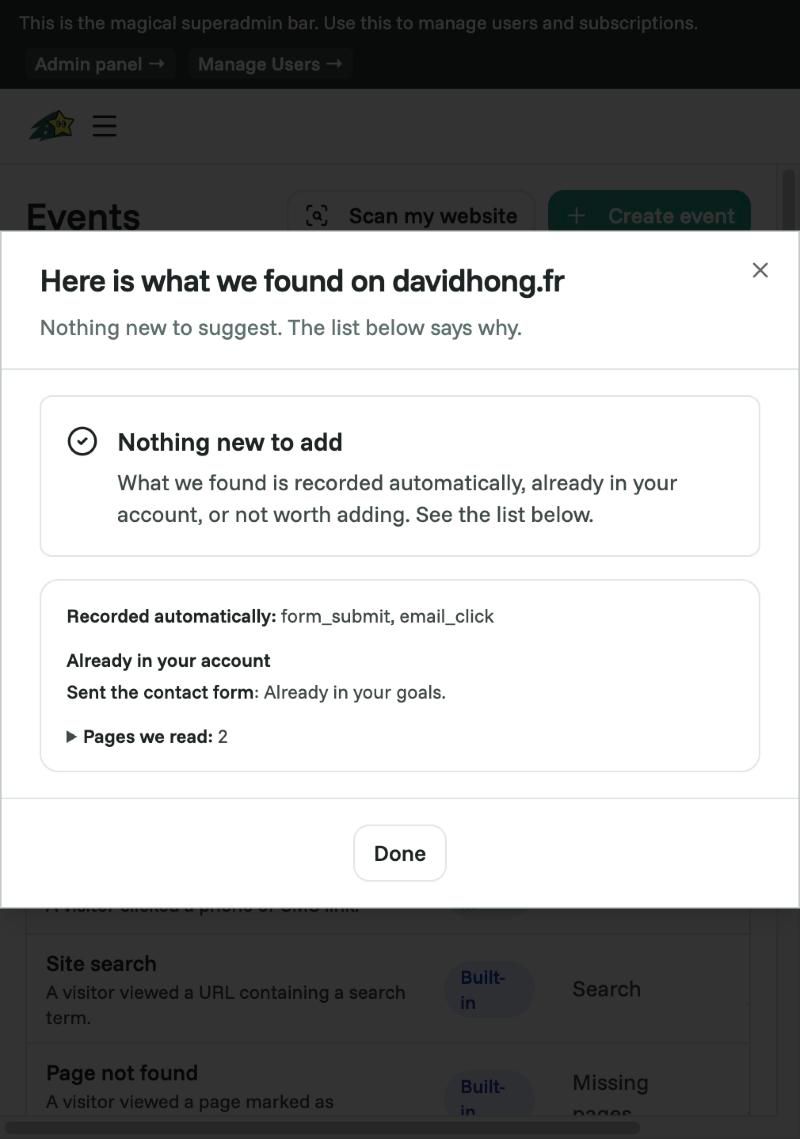
When the scan finishes, you see a recap screen with every suggestion, plus anything the scanner found that's already tracked automatically or already in your account:
Accept, edit, skip
Each suggestion is a card you can act on independently:
Accept — the event, funnel step or goal is created in your account with its suggested name and rule.
Edit — rename it, change the matching rule, or tweak the funnel order. You can also ask the AI to refine the rule for you (for example, "only count paid buyers, not free-trial sign-ups").
Skip — the card is dismissed. A fresh scan can re-propose it later.
Already created events, funnels or goals aren't touched. A suggestion that matches something you already have is marked as Already in your account so you don't end up with duplicates.
Code events (when the scanner can't see the action)
Some events happen in code the scanner can't inspect directly — a form submission inside a React app, a custom checkout flow, an in-app button handled by your own JavaScript. For these, the scanner generates an AI prompt you can paste into Claude, ChatGPT, Gemini or your IDE assistant. The prompt names the event, includes the Cromojo API call to make (CRMJ.event(...)), and describes where to put it in your code.
Paste the prompt into your AI tool, follow the steps, and the event starts flowing once you redeploy.
Re-running the scan
You can re-run a scan at any time — after a redesign, after you ship a new section of the site, or when new pages have been added. The scanner remembers which suggestions you've already accepted or skipped, so you're only shown what's new.
If your site changes often, re-scan monthly. Otherwise, run it once after launch, after a redesign, and after each major feature release.
Things to know
Public pages only. The scanner reads your site the same way a visitor would. Pages behind a login or an email gate are skipped — you'll need to set up those events manually.
One scan at a time per site. If a scan is already running, you'll see its progress instead of a new scan button.
Demo and sample sites. The scan button is hidden on the public demo site. If you're evaluating Cromojo there, sign up to try it on a real site.
Nothing is published automatically. You decide what goes in. Nothing is counted until you've accepted the event.
Related articles
Was this helpful?
Still need help? Ask the team